
Paying with crypto.
Two guided routes for turning AUD into a confirmed Aussie Peptides order — whichever suits how comfortable you are with crypto.
Choose your route
Both routes end with Bitcoin arriving in our order wallet. Pick based on speed versus how much control you want over your own crypto along the way.
-
1
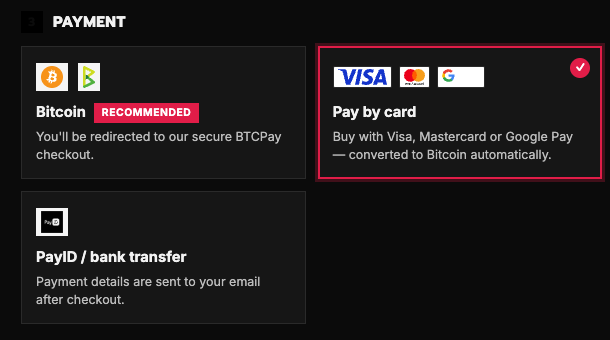
Choose “Pay by card”
At checkout, pick the Pay by card tile. It creates the same secure Bitcoin order — you’ll just fund it with your card.
Screenshot · aussiepeptides.org/checkout -
2
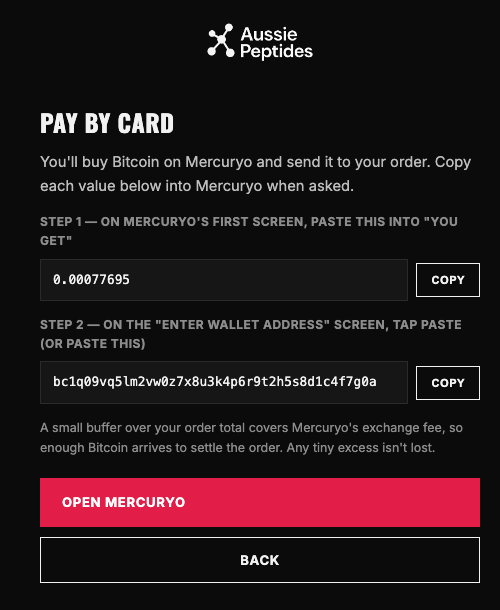
Copy the amount and address from our page
We show you two things to copy: the Bitcoin amount to paste into Mercuryo, and our Bitcoin address for the next screen. Then tap Open Mercuryo.
The amount already includes a small buffer for fees — paste it exactly, don’t reduce it.
Screenshot · aussiepeptides.org/pay -
3
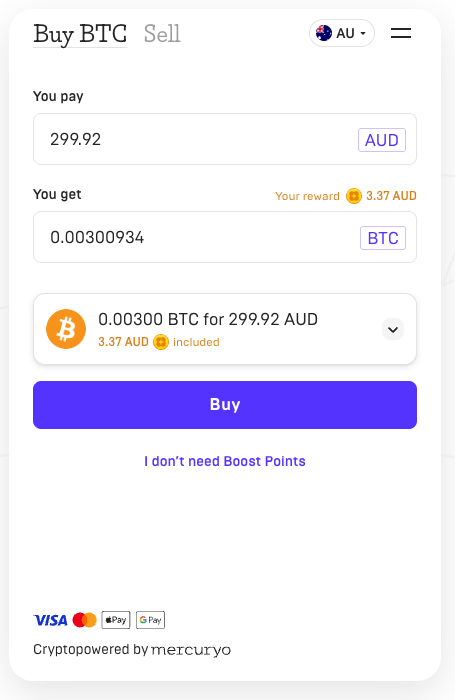
Pay with Mercuryo
Paste the Bitcoin amount into “You get”, tap Buy, and pay with your card (Apple/Google Pay on mobile). Verify your email with the one-time code, then confirm via 3D Secure. Mercuryo charges a small fee — shown before you confirm, typically around 1–4%.
Screenshot · exchange.mercuryo.io -
4
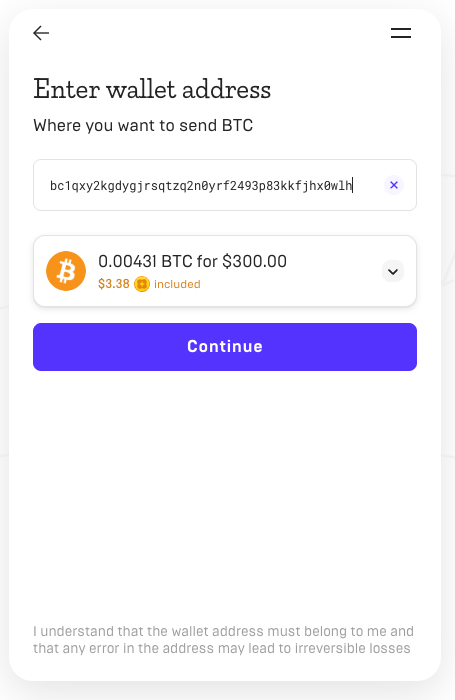
Send it to your order
On Mercuryo’s “Enter wallet address” screen, paste our address (the second thing you copied), check it matches, and tap Continue. Mercuryo sends the Bitcoin; we confirm it on-chain automatically (~10 minutes) and email you.
Screenshot · exchange.mercuryo.io
-
1
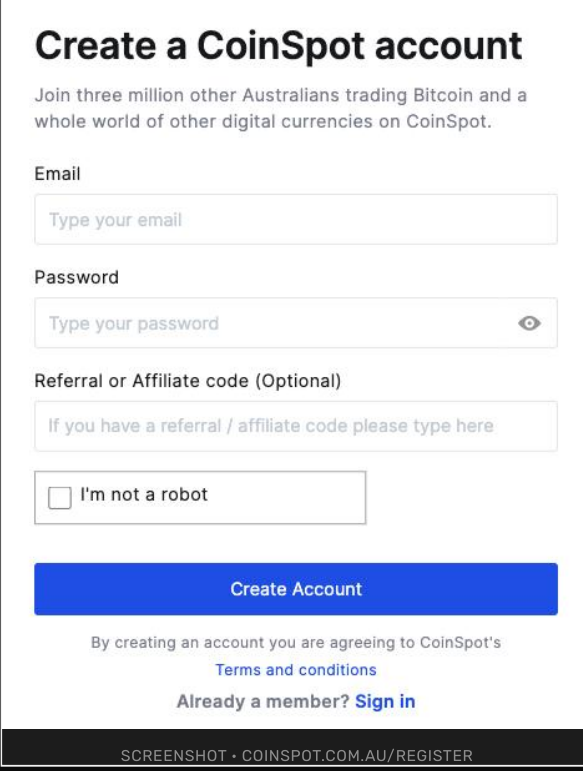
Set up CoinSpot
Download the CoinSpot app or visit coinspot.com.au. Register with a secure email and password, then verify your identity with your driver’s licence or passport — verification is usually near-instant.
CoinSpot app (illustration) -
2
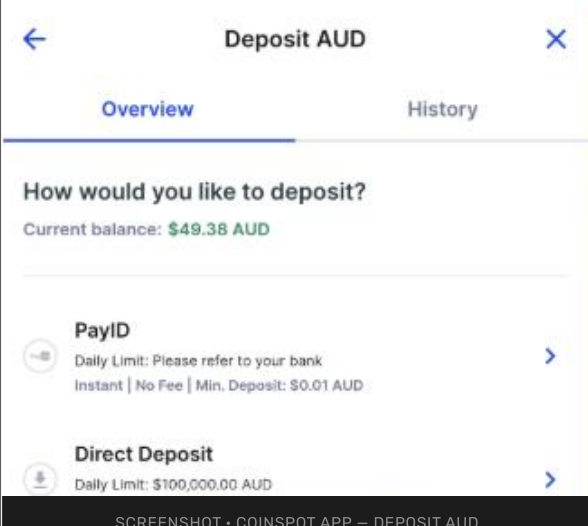
Fund your account with PayID
Deposit 5–10% more than your order total to cover exchange and network fees (e.g. deposit $110 for a $100 order). In your banking app, use PayID to send it to the PayID CoinSpot shows you, including their reference code. Your bank may show a scam-awareness warning when paying a crypto exchange — that’s a normal protection step; confirm you’re knowingly buying crypto yourself and continue.
CoinSpot app (illustration) -
3
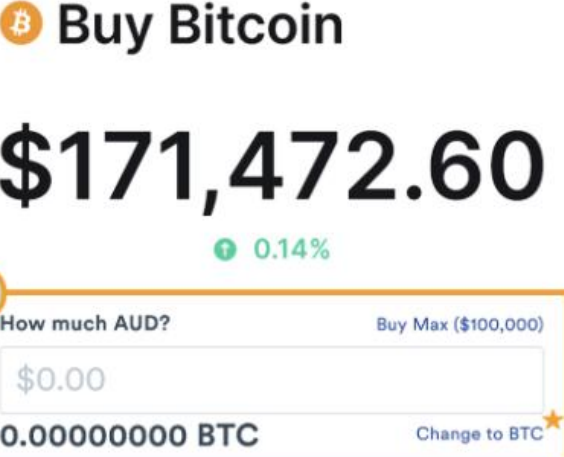
Buy Bitcoin
Tap Buy/Sell, choose Bitcoin (BTC), enter the AUD amount to convert, review the quote, and confirm.
CoinSpot app (illustration) -
4
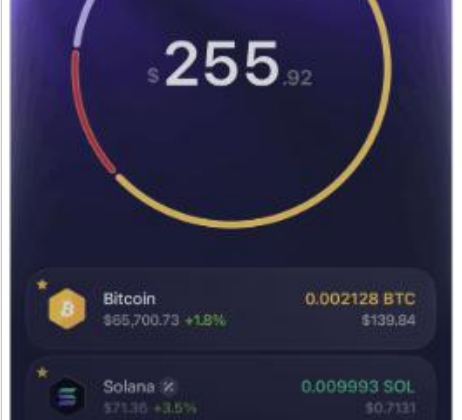
Set up your Exodus wallet
Download Exodus from the App Store or Google Play, create a new wallet, and set a secure passcode. Write your 12-word recovery phrase on paper — never screenshot or photograph it.
Exodus wallet (illustration) -
5
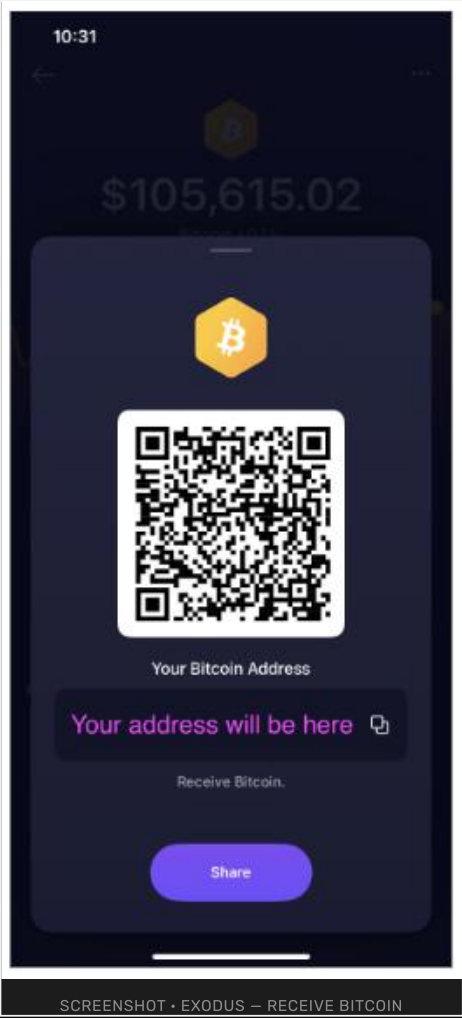
Find your receive address
In Exodus, tap Bitcoin (BTC) — make sure it’s BTC, not BCH or BSV — tap Receive, and copy the address starting with bc1….
Exodus wallet (illustration) -
6
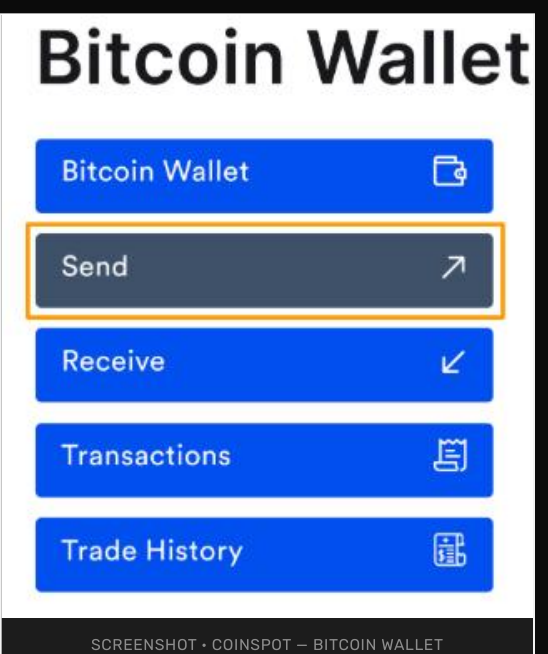
Move your Bitcoin to Exodus
In CoinSpot, go to Wallets › Bitcoin › Send, paste your Exodus address into the Payment Address field, check the first 4 and last 4 characters match, then send the full amount.
CoinSpot app (illustration) -
7
Send the payment to your order
Copy the exact BTC address from your Aussie Peptides order confirmation, enter the exact BTC amount shown on your invoice (don’t subtract the network fee — it comes from your buffer), double-check the address, and send. Afterwards, save the transaction ID and upload it on your order’s payment-confirmation page so we can match it quickly.
Exodus wallet (illustration)
Before you send
- Crypto payments can’t be reversed. Once sent, a Bitcoin transaction can’t be undone — triple-check every address before confirming.
- Protect your recovery phrase. If you use a wallet, your 12-word phrase is your money. Never share it, screenshot it, or type it into any website.
- Use a secure connection. Avoid public wifi when accessing an exchange or wallet — use mobile data or a network you trust.
- Bitcoin network only. Always send BTC on the Bitcoin network — never BCH or BSV.